The Vendor Administrator feature allows a user to act as an administrator user for their vendor. Vendor administrator users can create new vendor users, new vendor administrator users, and manage their vendor users.
At least one user of each role (e.g., vendor_admin_user and vendor_user) must exist in the vendor configuration before the vendor administrator user can add new users of these different roles.
By default, the vendor_admin_user role is not available in Project Director. It must be added by the Project Director administrator and then assigned to a user who will be a vendor administrator user.
The vendor_user role is available in Project Director by default., and therefore can be directly assigned to a user.
- Click Add Role.
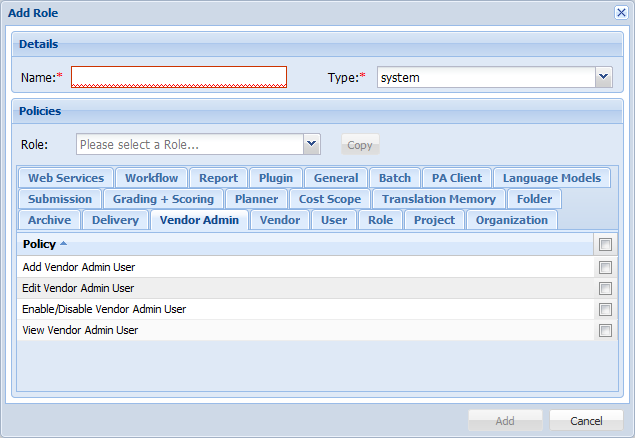
- Enable the following User Policies in the Vendor Admin tab to allow the vendor admin user to add and manage vendor users of their organization:
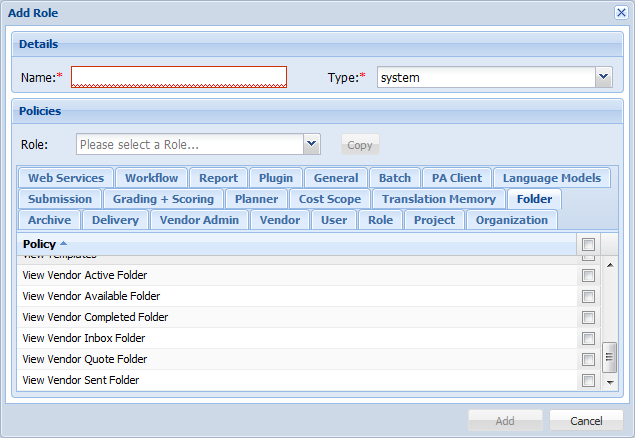
- Enable the folder policy View Vendor Folders in the Folder tab.
- Confirm that a user belonging to the same vendor is assigned the vendor_user role. If one does not exist, then create a new user for that vendor and assign them the vendor_user role.

Note: For more information on creating users and assigning roles , refer to Managing Users and Assigning User Roles and Rights.