Assigning Submission Task to an Organization User

To assign a submission task to an Organization User:

  1. Open the Project Director dashboard (Active folder) and select a submission.
  2. Click PM Assign under the manage tab as shown in the screenshot below.

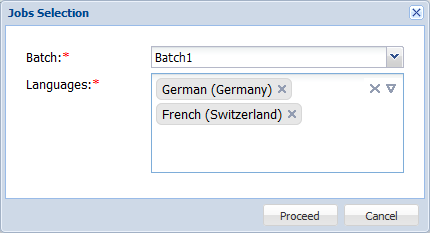
    The Jobs Selection dialog box appears.

  3. Select the Batch from the drop-down list and enter the target language(s).
  4. Click Proceed.

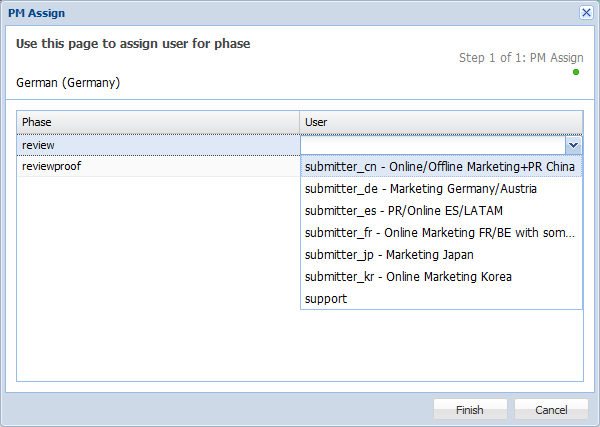
    The PM Assign dialog box appears. The phases in the submission are shown in the Phase column and the Vendor and Organization user list in the User column.
      Note:

    If configured, a user description is shown next to the Organization User. Please contact the System Administrator or your Translations.com contact to show, hide, or edit the user description.
  5. Select the Organization User from the User drop-down list next to the Phase column.
  6. Click Finish.

    The selected Organization User(s) will receive an email notification and will be able to start the Submission phase task after the preceeding phase tasks are delivered.